

🔥 New Release 🔥
Punished by the Beasts
Punished by the Beasts is a high-heat dark reverse harem shifter novella featuring one lucky woman who won’t need to choose, and three possessive beasts. Expect primal play, wife-sharing, monster peen, dub-con and a guaranteed HEA. Can be read as a standalone.Free with Kindle Unlimited
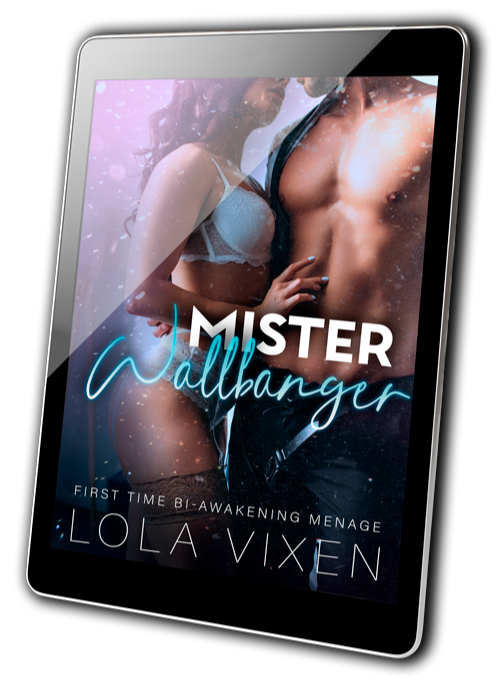
Download your FREE copy of Mister Wallbanger
By downloading your FREE copy of my novella, Mister Wallbanger—a high-heat, quick read full of kinks—you will be signing up for my newsletter.You can unsubscribe at any time.
Latest Releases



About the Author
Lola Vixen writes erotic romance full of kinks, dark twists, monsters, a touch of BDSM, and plenty of fun. Expect very high heat with little plot and explicit language from her books. Born in Brazil and now living in the Netherlands, she’s tackling the challenge of writing in English head-on. Lola lives with her husband and their lovable menace of a cat.
Copyright © 2026 Lola Vixen
Scroll down to find your e-mail provider
Gmail
1 - Log in to your Gmail account
2 - Click on the gear icon in the top right corner and select "See all settings"
3 - Navigate to the "Filters and Blocked Addresses" tab
4 - Click on "Create a new filter"
5 - Type the e-mail: [email protected]
6 - Click on "Create filter"
7 - Check the box that says "Never send it to Spam"
Microsoft 365 (Outlook)
Outlook Web App (OWA):
1 - Click on the gear icon in the top right corner and select "View all Outlook settings"
2 - Select "Junk email" from the left-hand menu
3 - Safe Senders and Domains: Under the "Safe senders and domains" section, click "Add"
4 - Type the e-mail: [email protected] and click "Enter"
5 - Click "Save" at the bottom of the pageOutlook Desktop App:
1 - Click on the "Home" tab, then click on "Junk" in the "Delete" group
2 - Select "Junk E-mail Options"
3 - Go to the "Safe Senders" tab
4 - Click on the "Add" button
5 - Type the e-mail: [email protected] and click "Okay" and click save
Apple Mail
1 - Launch the Mail app
2 - lick on "Mail" in the top menu bar and select "Preferences"
3 - Click on the "Rules" tab
4 - Click on the "Add Rule" button
5 - Give your rule a nameSet Conditions:
6 - In the first dropdown menu, select "From"
7 - In the second dropdown menu, select "contains"
8 - In the text field, type the e-mail: [email protected]Set Actions:
9 - In the first dropdown menu, select "Move Message"
10 - In the second dropdown menu, select Inbox
11 - Click OK to save the rule
Yahoo Mail
1 - Click on the gear icon in the top right corner and select "More Settings"
2 - Click on "Filters" in the left-hand menu
3 - Click on the "+ Add new filters" button
4 - Give your filter a descriptive name (e.g., "Whitelist [email address]")
5 - Choose the criteria for the filter (e.g., "From" "contains" "[email address]")
Set Actions:
6 - Select "Deliver to Inbox"
7 - Choose actions if you want
8 - Click "Save"
AOL Mail
Create a filter:1 - Go to "Settings" > "More Settings" > "Filters"
2 - Click "Add new filters"
3 - Create a filter that looks for emails from the specific address or domain
4 - Set the action to "Deliver to Inbox"
5 - Save the filter
6 - Mark emails as "Not Spam" (if found in spam folder)